
Why Is My Computer So Slow? Common Causes & How to Fix Them
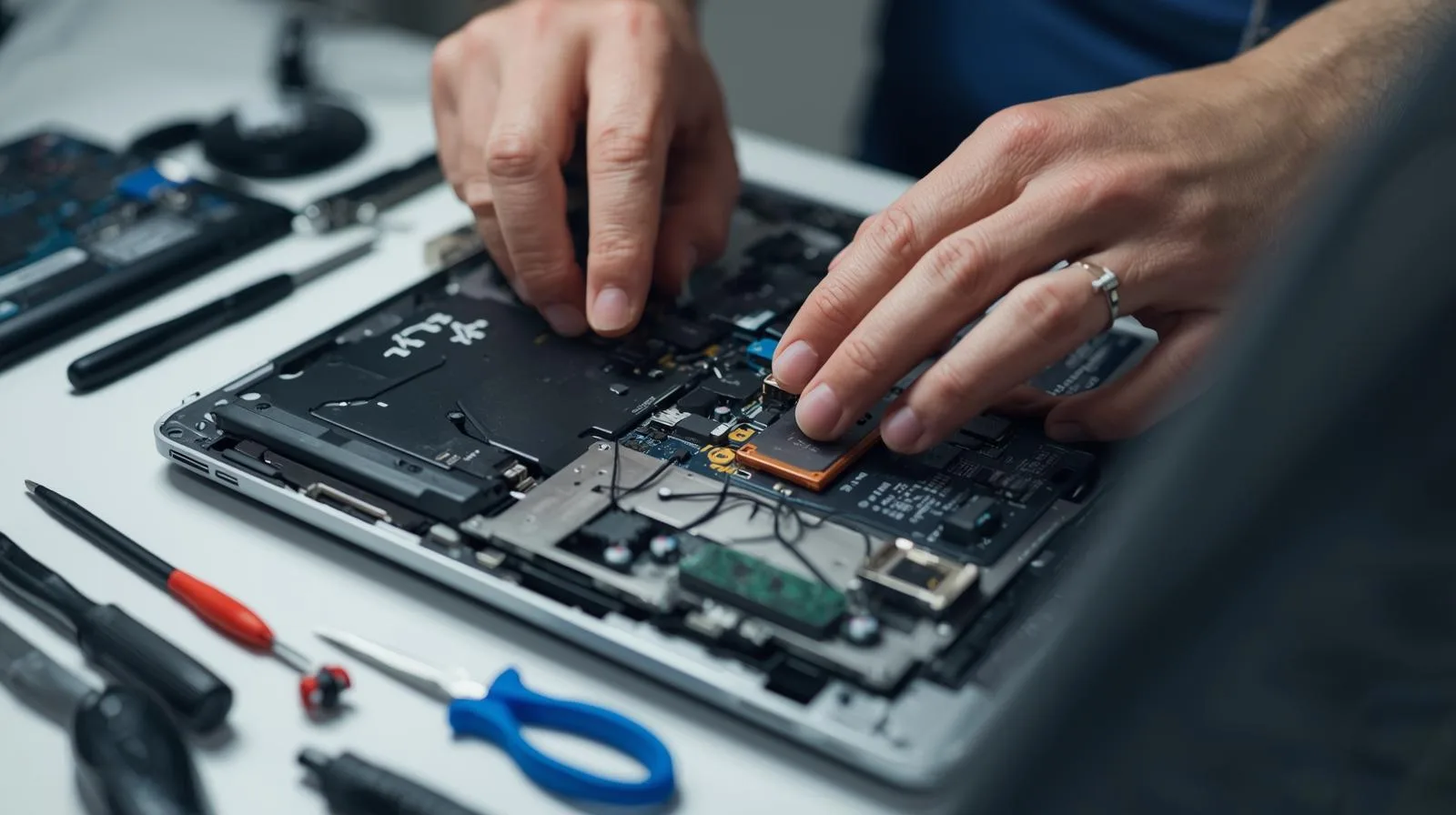
A slow computer is one of the most common problems we're asked to fix in Consett and across County Durham. It can have half a dozen different causes — and the fix for one is completely different to the fix for another. Here's a straightforward guide to what's most likely causing it and what actually helps.
1. Too Many Startup Programs
Every program you install often adds itself to your startup list. Over time, your PC ends up launching dozens of apps in the background the moment you turn it on — most of which you never use. This is one of the most common causes of a slow startup and sluggish early performance.
The fix: Open Task Manager (Ctrl + Shift + Esc), go to the Startup tab, and disable anything you don't need launching at boot. Be conservative — only disable things you recognise and don't need immediately on startup.
2. Malware or Virus Infection
Malware — including viruses, spyware, adware and cryptocurrency miners — can quietly consume your CPU and RAM in the background, grinding your computer to a halt. If your PC slowed suddenly, especially after downloading something or visiting an unfamiliar site, this is worth investigating first.
The fix: Run a full scan with Windows Defender, and a second scan with a tool like Malwarebytes Free. If you're finding things or the problem persists, professional virus removal is the safest approach — some infections hide from standard scanners.
3. You Have a Spinning Hard Drive (HDD), Not an SSD
This is the single most impactful upgrade you can make to an ageing computer. Traditional spinning hard drives are dramatically slower than solid-state drives for everyday tasks — loading Windows, opening applications, saving files. A computer with an HDD that was built before 2016 will almost certainly feel like a new machine after an SSD upgrade.
The fix: Upgrade to an SSD. We carry out SSD upgrades regularly in Consett — cloning your existing data across so nothing is lost. The difference is immediately noticeable.
4. Not Enough RAM
If your computer has 4GB of RAM or less and you're running Windows 10 or 11, it's going to struggle — especially with a browser open with multiple tabs. RAM is where your computer keeps active data. When it runs out, it starts using your (slower) drive as overflow, which causes severe slowdown.
The fix: Check how much RAM you have (right-click the Start button → System). If it's 4GB, upgrading to 8GB or 16GB makes a significant difference. Not all machines allow RAM upgrades — we can advise on whether yours does.
5. Overheating and Thermal Throttling
When a processor gets too hot, it deliberately slows itself down to prevent damage — a process called thermal throttling. If your PC runs fine when cool but slows noticeably after 20–30 minutes of use, overheating is likely the cause. Dust-blocked vents and dried-out thermal paste are the usual culprits, especially in machines more than 3–4 years old.
The fix: Clean out dust (carefully, with compressed air), and if the problem persists, replace the thermal paste on the CPU. For laptops especially, this is something we handle regularly.
6. Windows is Bloated or Corrupted
Windows accumulates junk over time — temporary files, failed updates, broken registry entries, fragmented system files. Sometimes a component gets corrupted and Windows struggles to operate properly. This can cause slowdowns that persist even on good hardware.
The fix: Run Disk Cleanup (search for it in the Start menu) and use the built-in
sfc /scannow command to check for system file issues. In more severe cases, a clean Windows
reinstall with your data preserved is the most reliable solution — and often faster than trying to unpick
years of accumulated issues.
7. The Hardware Is Genuinely Too Old
Not every slow computer can be fixed by software changes or minor upgrades. If you're running a machine from 2010 on Windows 11, there's only so much that can be done. At some point, the question becomes whether repair and upgrade costs are worth it versus a newer machine.
Our honest approach: We'll always tell you if a repair isn't worth the money. If the hardware is genuinely past it, we'll say so — and can advise on what to look for in a replacement.
Quick self-check: Open Task Manager and look at the Performance tab while your computer is slow. If CPU is above 80% at idle, check what's using it in the Processes tab. If disk usage is constantly at 100%, you almost certainly have an HDD that needs replacing with an SSD.
Still Slow After Trying These?
If you've worked through the above and your PC is still sluggish, bring it in or get in touch — we'll diagnose it properly and give you a straight answer on what's needed.